You spent a month getting Claude Code right on your desktop: a CLAUDE.md that knows how you like tests written, a handful of skills, two MCP servers and permissions that stopped the prompts. Then you open the laptop and it’s a stranger again. This guide shows how to sync Claude Code settings between computers: which files have to move, how to do it with a git repo you maintain yourself, and how to do it with SkillPouch.
What Claude Code keeps, and where
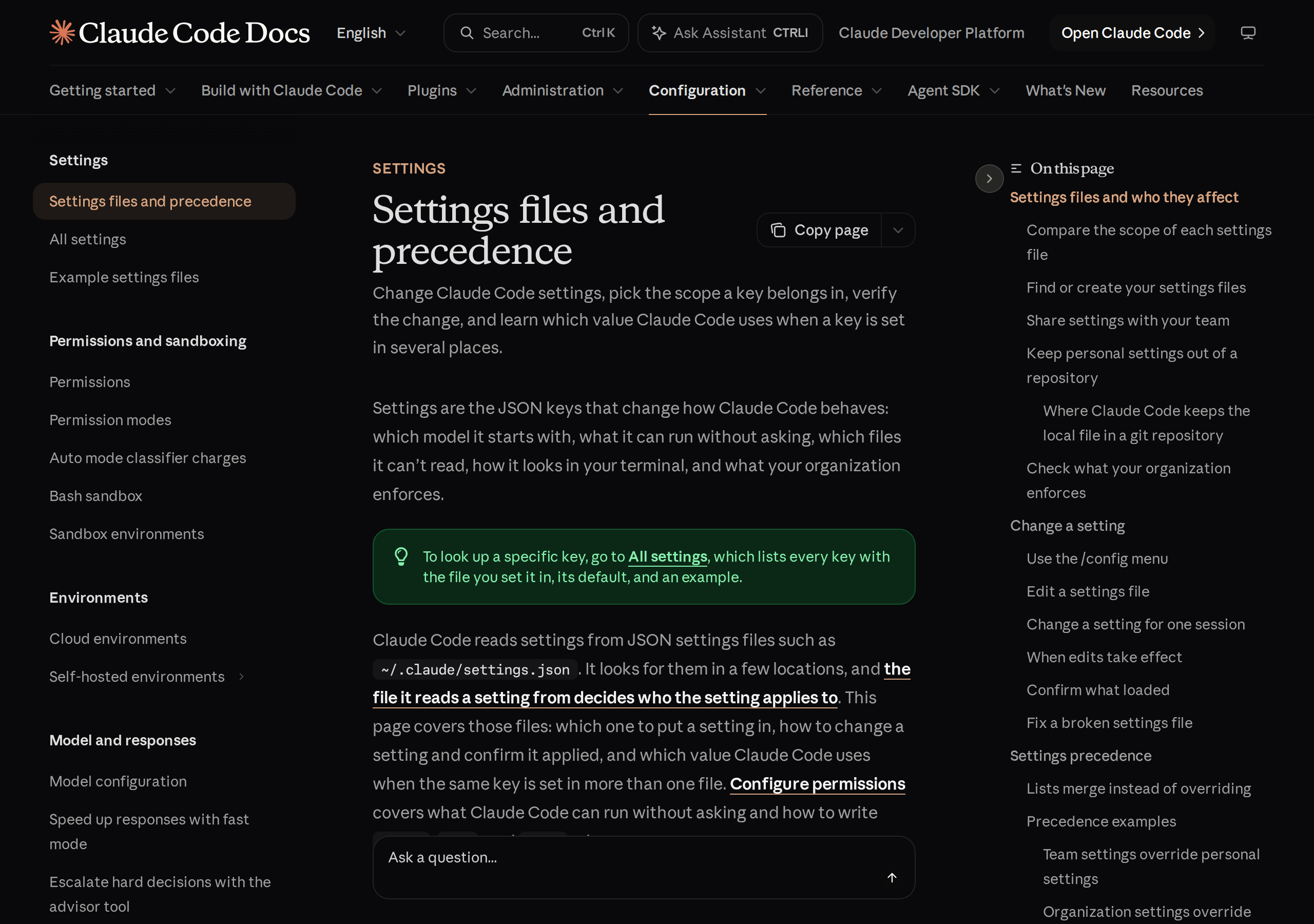
Your personal setup lives in two places in your home folder. The folder ~/.claude/ holds the files you write, and a single file next to it, ~/.claude.json, holds the state Claude Code writes for itself. Here is what the Claude Code docs list, and whether each one belongs on your other computers:
| Path | What it holds | Move it? |
|---|---|---|
~/.claude/CLAUDE.md |
Your global instructions, loaded in every project | Yes |
~/.claude/settings.json |
Default settings: model, permissions, environment, hooks, status line | Yes, but watch the secrets |
~/.claude/skills/ |
Personal skills | Yes |
~/.claude/agents/ |
Personal subagents | Yes |
~/.claude/commands/ |
Personal slash commands | Yes |
~/.claude.json |
Sign-in session, per-project trust decisions, your MCP servers, UI toggles | Only the MCP servers |
~/.claude/.credentials.json |
Your login credentials | Never |
Option 1: a git dotfiles repo
If you already keep a dotfiles repository, the files you write fit right in. Move them into the repository, link them back into ~/.claude/, and push:
❯ mkdir -p ~/dotfiles/claude && cd ~/dotfiles❯ for f in CLAUDE.md settings.json skills agents commands; do mv ~/.claude/$f claude/ && ln -s ~/dotfiles/claude/$f ~/.claude/$f; done# each file and folder now lives in the repo; ~/.claude/ holds links to it❯ git add claude && git commit -m "Claude Code setup" && git push# on the other computer: clone the repo, move its own copies aside, run the same ln -s linesFrom then on, an edit on either computer is a git commit and a git pull away from the other. You get full history, and you can review every change before it lands. For one assistant on two computers that you remember to pull, this works.
The costs show up later:
- MCP servers don’t come along. They sit inside
~/.claude.jsonwith your session, so the usual answer is to add them again by hand on each computer, or to script it. - Secrets end up in git. API keys and tokens in the
envblock ofsettings.jsongo into the repository in plain text unless you add encryption, for example git-crypt or a dotfiles manager that supports it. - Sync happens when you remember. Commit, push, pull on every computer, and fix merge conflicts by hand when two of them changed the same file.
- It only covers Claude Code. If you also use Codex or Gemini CLI, the same instructions have to exist as
AGENTS.mdandGEMINI.md, and the same MCP server as entries in their config files, each in its own format.
Option 2: Claude Code on multiple computers with SkillPouch
SkillPouch is built for exactly this job. It keeps one copy of your setup, called a pouch, as ordinary files under ~/.skillpouch/, links Claude Code’s folders to it, and syncs the pouch between your computers in the background. The CLI encrypts pouch content and file names before upload; the security model spells out what the server can and can’t see.
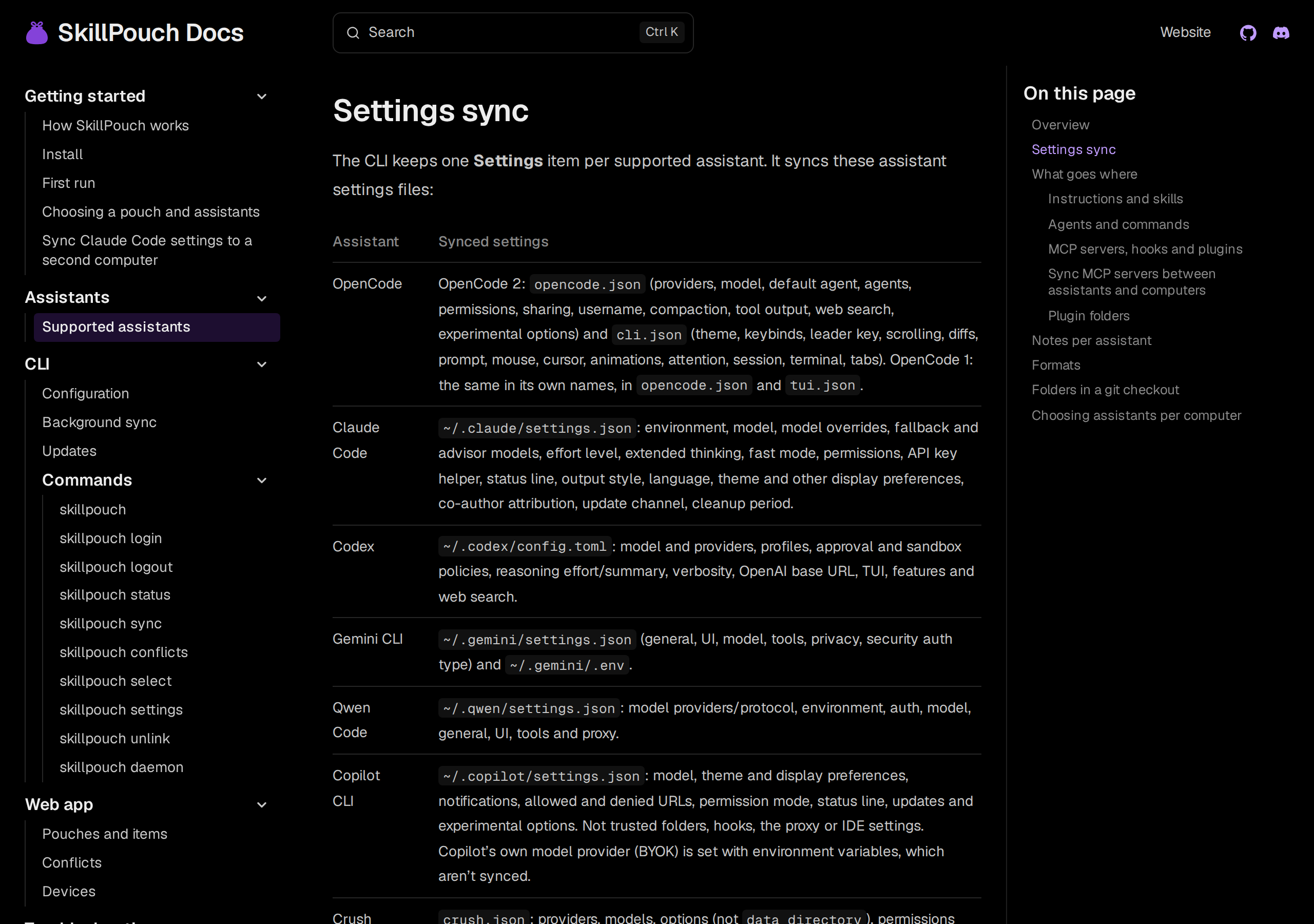
What it covers for Claude Code, from the assistant file map:
CLAUDE.md,skills/,agents/andcommands/, linked into~/.claude/.- MCP servers, written into
~/.claude.json. SkillPouch changes only the entries it added and leaves the rest of the file alone, so your session and trust decisions stay where they are. - Hooks and plugins, written into
settings.json. - The settings in
~/.claude/settings.json: environment, model, model overrides, fallback and advisor models, effort level, extended thinking, fast mode, permissions, API key helper, status line, output style, language, theme and other display preferences, co-author attribution, update channel, cleanup period. - Never credential files such as
.credentials.json.
On the first computer
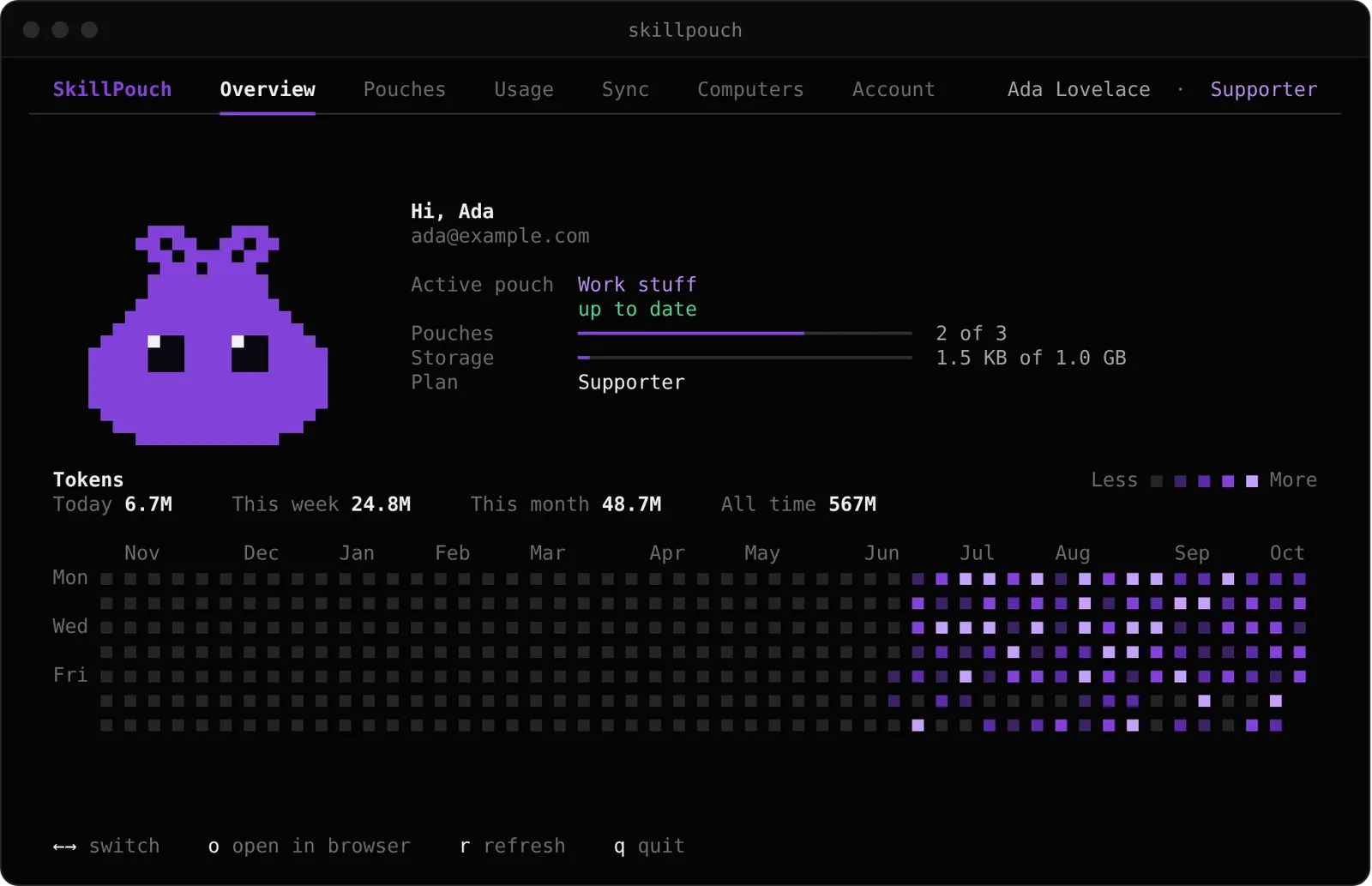
Install the CLI and run it. The dashboard signs the computer in through your browser and asks which pouch to use. For a new, empty pouch, choose Start from an assistant and pick Claude Code: its setup is copied into the pouch, and Claude Code keeps working as before.
❯ npm i -g skillpouch❯ skillpouch# opens the dashboard; the first time, it signs this computer in through your browser# pick a pouch, then "Start from an assistant" and choose Claude CodeOn the second computer
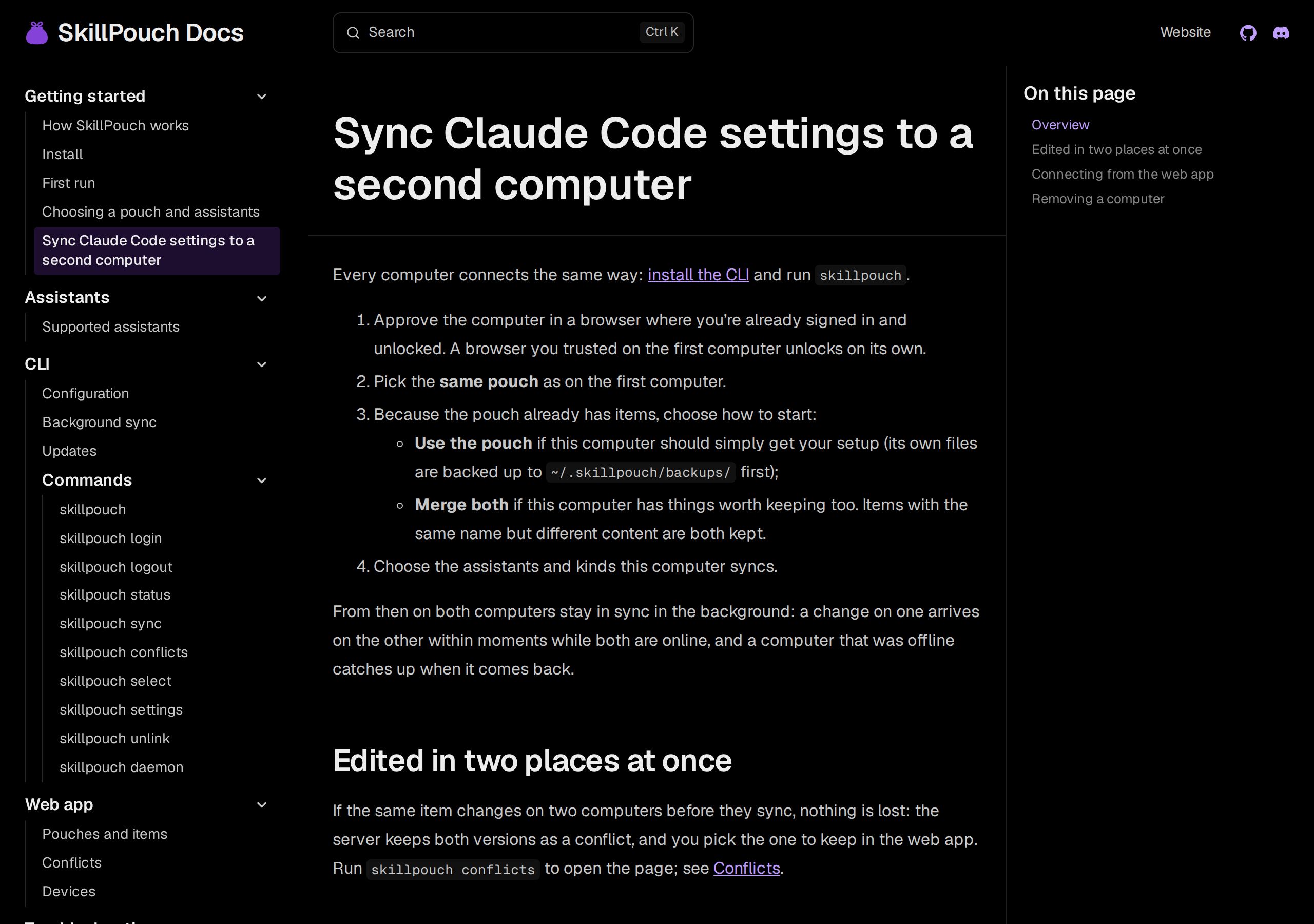
Every other computer connects the same way, following the second computer guide:
- 1
Install and run skillpouch
npm i -g skillpouch, then skillpouch. Approve the computer in a browser where you are already signed in and unlocked.
- 2
Pick the same pouch
Choose the pouch you used on the first computer.
- 3
Choose how to start
Use the pouch if this computer should simply get your setup; its own files are backed up to ~/.skillpouch/backups/ first. Merge both if it has things worth keeping too.
- 4
Choose what it syncs
Pick the assistants and kinds this computer syncs. Everything found is on unless you turn it off.
After that there is nothing to run. The background sync starts with the computer: a change on one computer arrives on the other within moments while both are online, and one that was offline catches up when it comes back.
When both computers change the same file
With git, that’s a merge with conflict markers. SkillPouch keeps both versions as a conflict instead of guessing: every computer keeps the version that’s in the pouch, the background sync shows a desktop notification once, and you pick the version to keep in the web app. skillpouch conflicts opens the page.
Edit CLAUDE.md on the laptop and the desktop, pull, and fix conflict markers by hand in a file Claude Code reads every session.
Both versions are kept as a conflict. Every computer keeps the pouch's version until you choose one side by side in the web app.
Share CLAUDE.md between machines, and with other assistants
The part git can’t do without scripts is the second assistant. In a pouch, your instructions are stored once and written to every assistant that has an instructions file, in its own place: CLAUDE.md for Claude Code, AGENTS.md for Codex and OpenCode, GEMINI.md for Gemini CLI. MCP servers go into each assistant’s own config file, such as mcp.json for Cursor or config.toml for Codex. Install Codex on the laptop next month and it gets your setup on its own.
Which one to pick
| Git dotfiles repo | SkillPouch | |
|---|---|---|
| New computer | Clone and run your link script | npm i -g skillpouch, skillpouch, pick the pouch |
| Staying in sync | Commit, push and pull on each computer | Background sync, within moments while online |
MCP servers in ~/.claude.json |
By hand or by script | Synced; other entries left alone |
Secrets in settings.json |
Plain text unless you add encryption | End-to-end encrypted |
| Other assistants | One file per assistant, or a script | Written in each assistant’s format |
| History | Full git history | Backups before replacing, no browsable history |
| Covers | Any file you put in the repo | AI assistants’ user-level setup |
You don’t have to choose. If your Claude Code files live in a git checkout, SkillPouch only reads them and never writes there, so the checkout stays clean. The install guide has the install command for npm, pnpm and bun.
Try it on your own setup
Free to start, end-to-end encrypted, open source. Two commands and your setup follows you.