You run Claude Code on a desktop, a laptop and maybe a work box, and each one has drifted into its own setup. The usual question is which tool should sync Claude Code across multiple computers: a git repo, Syncthing, a Dropbox or iCloud folder, or something built for it. This post compares all four honestly, starting with the part that decides most of the answer: what in ~/.claude should travel at all.
What in ~/.claude is safe to sync
~/.claude mixes two very different things. Some of it is configuration you wrote. The rest is data Claude Code writes while you work, and the Claude Code docs are blunt about it: those files are plaintext, and anything that passes through a tool ends up in a transcript on disk, including file contents, command output and pasted text.
| Sync it | Leave it on the computer |
|---|---|
CLAUDE.md, your global instructions |
projects/: transcripts of every session, plus auto memory |
skills/, agents/, commands/ |
history.jsonl: every prompt you typed |
settings.json, with care for secrets |
file-history/, plans/, debug/, paste-cache/, caches |
MCP servers (they live in ~/.claude.json) |
.credentials.json: your login credentials |
Two details shape every option below. Your MCP servers are not in ~/.claude at all: they sit in ~/.claude.json next to it, together with your sign-in session and per-project trust decisions. And the runtime files change constantly while Claude Code runs, which is exactly what file sync tools handle badly.
Option 1: a git dotfiles repo
Move CLAUDE.md, settings.json, skills/, agents/ and commands/ into a dotfiles repository, symlink them back into ~/.claude, push. The full walkthrough with the exact commands is in our guide to syncing Claude Code settings.
❯ git add claude && git commit -m "new review skill" && git push# on every other computer, before you start working:❯ git pullWhat you get: full history, review before anything lands, and you choose exactly which files are in. What it costs:
- Sync is a habit. Forget to pull on the laptop and you work with yesterday’s setup; edit on both and you fix merge conflicts by hand.
- Secrets are plain text unless you add encryption. FelixIsaac/claude-code-sync is one example that wraps git with age encryption for
settings.jsonand~/.claude.json. - MCP servers need a script, because
~/.claude.jsonalso holds your sign-in session and trust decisions, so you can’t just commit or symlink it.
Option 2: Syncthing with a whitelist
Syncthing syncs a folder peer to peer, with no cloud account in between. Pointed at all of ~/.claude it would happily copy transcripts and credentials, so the trick is a whitelist .stignore: include the few things you want, ignore everything else. Syncthing’s ignore rules apply the first pattern that matches, ! means include, and a pattern starting with / only matches at the root of the folder:
❯ printf '%s\n' '!/CLAUDE.md' '!/skills' '!/agents' '!/commands' '*' > ~/.claude/.stignore# includes the four entries, then '*' ignores everything else# repeat on every computer: Syncthing never syncs .stignore itself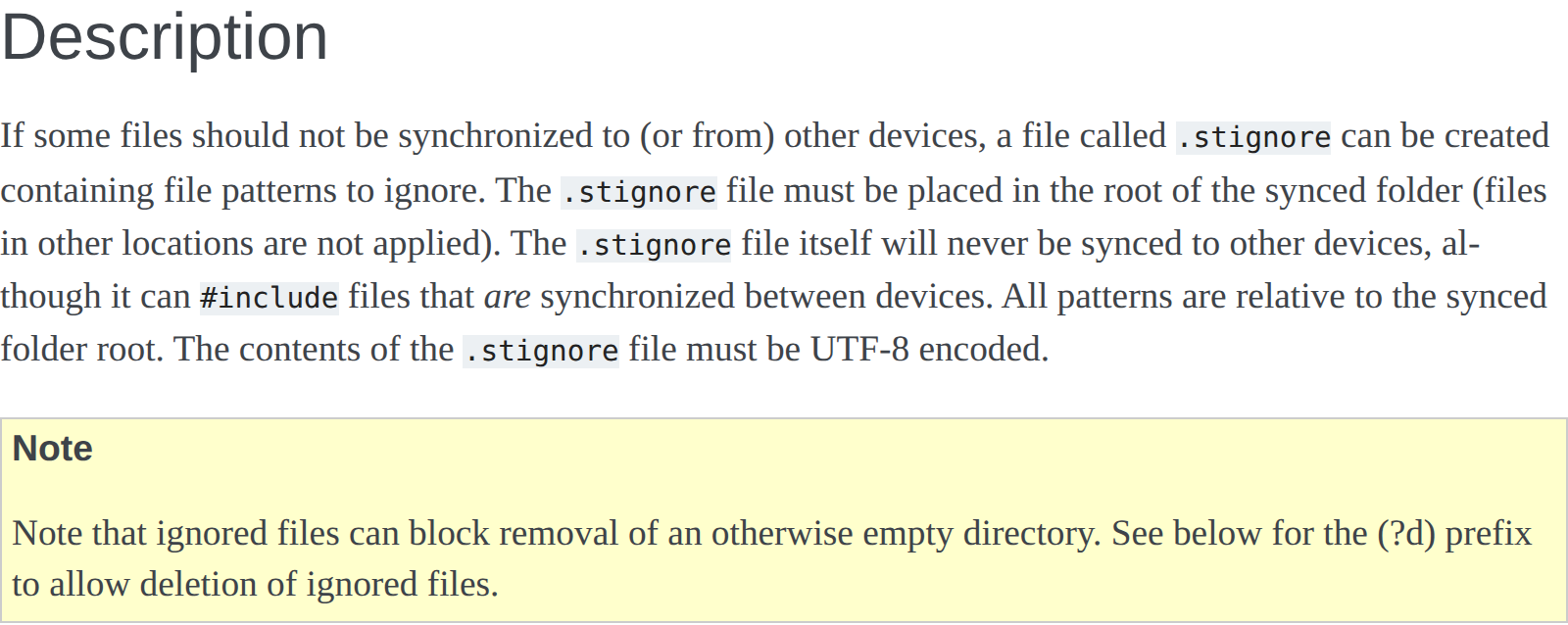
andrewle8/claude-code-sync is a well-documented version of this setup for macOS, Linux and Windows. Its whitelist leaves settings.json out entirely and has you configure it on each machine, and it points out that per-project memory folders are named after absolute paths, so a repo checked out at a different path or on another OS doesn’t share them.
The trade-offs to know before you commit:
- Both computers have to be online at the same time. The Syncthing FAQ says it exchanges data across your machines as soon as they are online together; there is no server holding the latest copy for a laptop that wakes up later, unless you keep an always-on device in the mesh.
- Symlinks are synced, except on Windows, per the same FAQ, which matters if your skills folder links somewhere else.
- Conflicts become extra files. When the same file changed on two devices, the older one is renamed:
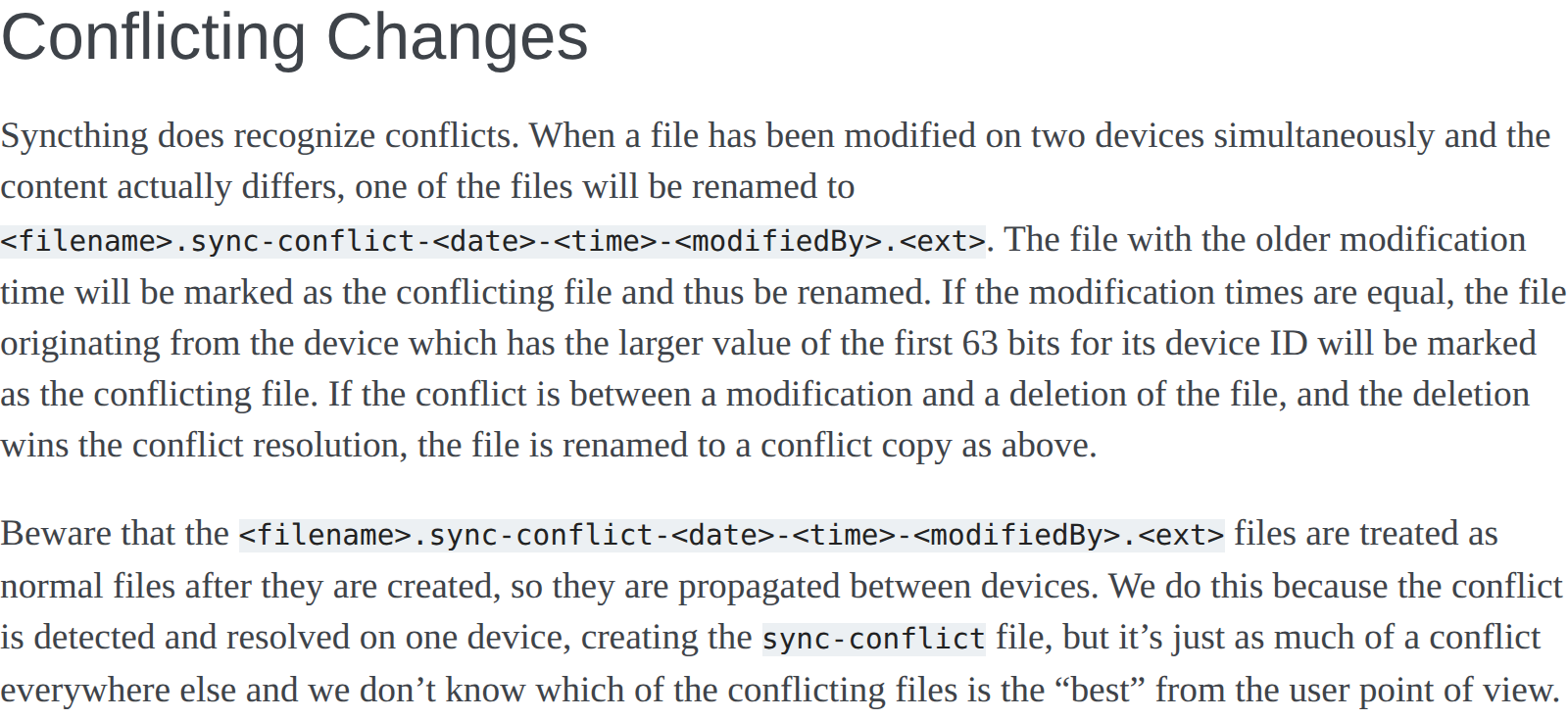
A CLAUDE.md.sync-conflict-... file sitting next to your real one is harmless, but nobody tells you it’s there, and the version Claude Code reads is simply the newer one.
Option 3: Dropbox or iCloud Drive
The tempting shortcut: move ~/.claude into the cloud folder and symlink it back. It’s one command, and it’s also the option with the most warnings attached. Yoel-Klein/Claude-Code-Config carries a prominent warning not to use Dropbox for ~/.claude, after hitting frequent writes, file locks, write failures and conflicts.
The reasons follow from the table at the top:
- The folder never stops changing. Transcripts,
history.jsonland checkpoint snapshots are written during every session. Two computers with Claude Code open both write to shared files such ashistory.jsonl, which is the textbook case for a Dropbox conflicted copy: a file Dropbox creates when the same file is edited in two places at the same time. - There’s no
.stignore-style whitelist. A cloud drive syncs the whole folder, so your transcripts (file contents, command output, pasted secrets) and.credentials.jsonend up on the provider’s servers. - MCP servers still don’t come along, since
~/.claude.jsonsits outside the folder.
Option 4: SkillPouch
SkillPouch is the option built for this exact job (it’s ours), so take this section with that in mind. Instead of syncing a folder, it syncs items: instructions, skills, agents, commands, MCP servers, hooks, plugins and settings. Transcripts, history and caches aren’t items, so SkillPouch doesn’t sync them, and credential files such as .credentials.json are never synced.
How it answers the problems above:
- No habit to keep. A background sync runs on each computer and starts again when you log in. A change on one computer arrives on the others within moments while they’re online, and a computer that was offline catches up when it’s back, so the two don’t need to be on at the same time.
- Encrypted before upload. Pouch content, file names and pouch names are encrypted on your computer before upload, as the security page explains, and the server never sees your master password or Recovery Key.
- MCP servers included. SkillPouch writes them into
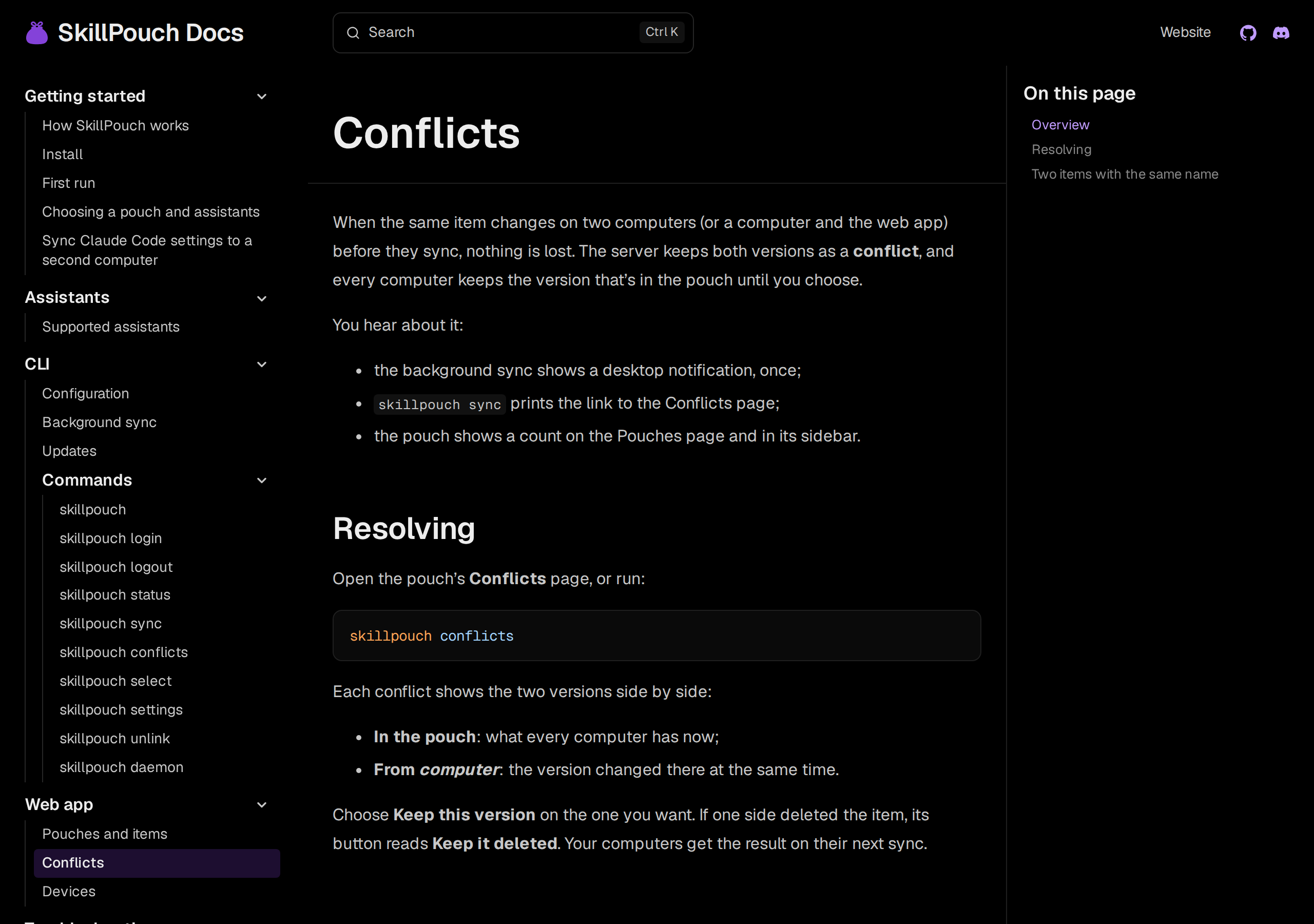
~/.claude.jsonand changes only the entries it added, so your session and trust decisions stay put. - Conflicts are marked, not guessed. Both versions are kept as a conflict, every computer keeps the version in the pouch until you choose, and you get a notification:
- Other assistants get it too. The same instructions are written as
AGENTS.mdfor Codex and OpenCode, and the same MCP servers into Cursor’smcp.jsonor Codex’sconfig.toml, each in its own format, per the assistant file map. - Self-hostable. SkillPouch is open source under AGPL-3.0, and the self-hosting docs run the same stack on your own server.
Symlink ~/.claude into Dropbox on three PCs and find history.jsonl (conflicted copy) a week later, with your transcripts on someone else's server.
Only your instructions, skills, agents, commands, MCP servers and settings sync, encrypted, and a clash waits for you to pick a version.
Comparison table
| Git repo | Syncthing | Dropbox / iCloud | SkillPouch | |
|---|---|---|---|---|
| Setup | Repo, symlinks, push/pull habit | Install, pair, .stignore on each |
Move folder, symlink | npm i -g skillpouch, skillpouch |
| When it syncs | When you push and pull | When both are online together | Continuously | Continuously; offline computers catch up |
| Picks what syncs | You choose the files | Whitelist per computer | Whole folder | Config items only |
MCP servers in ~/.claude.json |
Script it | Not covered | Not covered | Synced |
| Encryption | Add it yourself (age, git-crypt) | TLS between devices | Provider’s servers hold the files | End-to-end encrypted |
| Conflicts | Merge markers | .sync-conflict copy, newer wins |
Conflicted copy files | Both kept, you pick |
| Other assistants | One file per assistant | One folder per assistant | One folder per assistant | Written in each one’s format |
| History | Full git history | None by default | Provider’s file history, if any | Backups before replacing, no history |
| Self-hostable | Yes | No server needed | No | Yes, AGPL |
Adding a second computer with SkillPouch
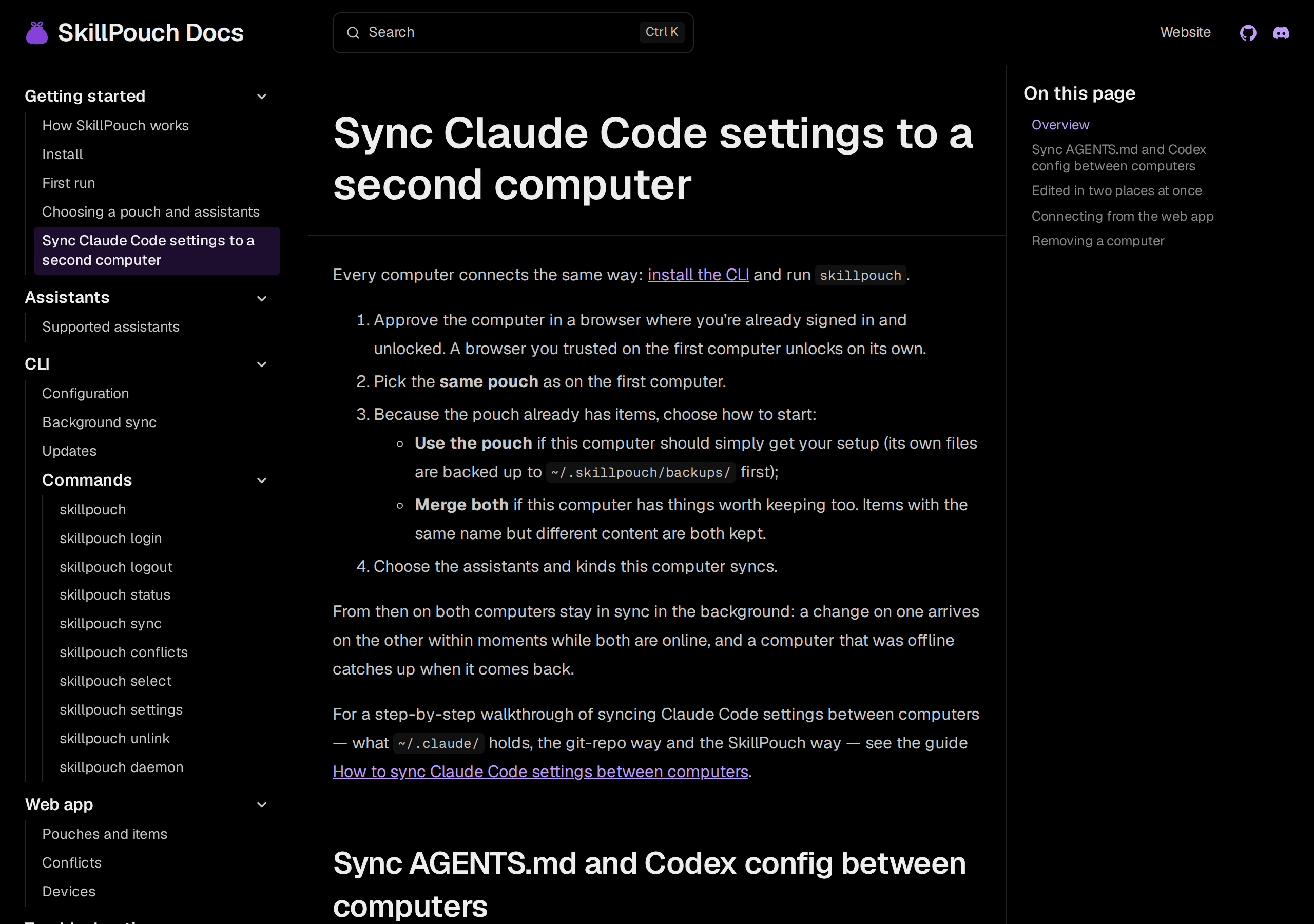
If the first computer is already set up, every other one follows the second computer guide:
- 1
Install and run it
npm i -g skillpouch, then skillpouch. The dashboard opens and asks you to approve this computer in a browser where you are signed in and unlocked.
- 2
Pick the same pouch
Choose the pouch your first computer uses.
- 3
Choose how to start
Use the pouch if this computer should simply get your setup (its own files are backed up to ~/.skillpouch/backups/ first), or Merge both if it has things worth keeping.
- 4
Choose what it syncs
Pick the assistants and kinds for this computer. From then on the background sync keeps it current.
The honest trade-offs
No option is free of them:
- Sync is not a backup. Delete a skill on one computer and every live sync tool here deletes it on the others too. SkillPouch backs files up before replacing them but has no browsable version history; its own docs suggest keeping a git repo of your config if you need to roll back. You can run both: SkillPouch treats assistant folders inside a git checkout as read-only, so it reads them but never writes there.
- End-to-end encryption cuts both ways. If you lose your master password, your Recovery Key and every computer or browser you already trust, nobody can recover your data, including SkillPouch, as the background sync docs state.
- Syncthing and git cost nothing and keep everything on machines you own. If you use one assistant, remember to pull, and don’t mind adding MCP servers by hand, they’re fine choices.
The one to avoid is the shortcut: a whole ~/.claude folder in Dropbox or iCloud syncs too much, too often, to too many places.
Try it on your own setup
Free to start, end-to-end encrypted, open source. Two commands and your setup follows you.