You want CLAUDE.md, AGENTS.md, your skills and your MCP servers to match on every computer, and you want the copy in the middle to sit on a machine you control. This post compares the self-hosted AI config sync tools that do that job: a git repo on your own server, Syncthing, a translation tool, and self-hosted SkillPouch. For each one: what you run, what the server can read, and what still drifts.
What a self-hosted AI config sync tool has to handle
Three things make assistant config harder to sync than a .zshrc, and they decide which tool fits:
- Every assistant has its own format and folder. The same instructions are
CLAUDE.mdfor Claude Code,AGENTS.mdfor Codex andGEMINI.mdfor Gemini CLI. An MCP server is JSON in~/.claude.jsonand in Cursor’smcp.json, and a TOML table in Codex’sconfig.toml, per the SkillPouch assistant file map. - Secrets live inside config. An MCP server that needs a token usually gets it from an
envblock, in the same file as the rest of your setup. - The folders mix config with state. Transcripts, history and credential files sit next to the files you wrote. Our dotfiles guide maps which files in
~/.claude,~/.codexand~/.cursorare safe to carry.
Self-hosting adds a fourth question: what can the machine in the middle read? A server that stores your config in plain text is self-hosted, and it also holds every key in your MCP setup.
Option 1: a git repo on your own server
The oldest answer. Any Linux box you can reach over SSH can hold a bare repository, as the Pro Git book shows:
❯ cd /srv/git && mkdir ai-config.git && cd ai-config.git && git init --bare# that runs on the server; then, in the dotfiles repo on each computer:❯ git remote add origin git@gitserver:/srv/git/ai-config.git❯ git push origin mainThe same chapter shows how to give the git account git-shell as its login shell, so it can push and pull but can’t get normal shell access to the server.
What you get: every change in history, review before anything lands, and nothing on the server but a repository. What stays your job:
- Secrets are plain text on the server and in every clone, unless you encrypt them before you commit. The dotfiles guide shows chezmoi with age for that.
- One file per assistant. Git carries
CLAUDE.mdexactly as it is. It doesn’t write anAGENTS.mdfor Codex from it. - Sync is a habit. Push on one computer, pull on the others, and merge by hand when two of them changed the same file.
Option 2: Syncthing with your own discovery server
Syncthing keeps no central copy at all. The Syncthing FAQ says it “does not upload your data to the cloud but exchanges your data across your machines as soon as they are online at the same time.” The catch for self-hosters is how devices find each other over the internet: through discovery servers, and by default those are public ones.
You can run your own. The discovery server docs say “anyone can run a discovery server and point Syncthing installations to it”:
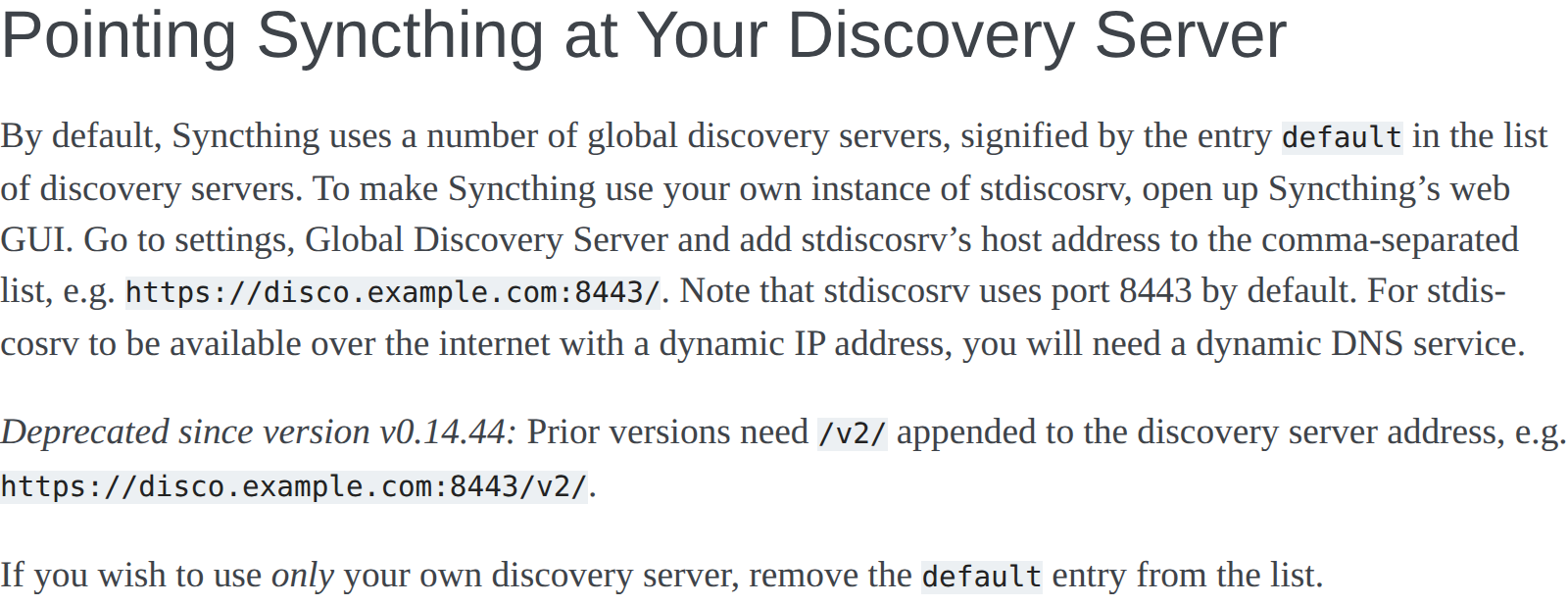
Relays work the same way. Syncthing relies on a pool of community relay servers, and the relay server docs show how to use specific relays, instead of the public pool, through the Sync Protocol Listen Address field.
What it leaves to you:
- Both computers have to be online together. A laptop that wakes up after the desktop went to sleep gets nothing until the two overlap.
- Files move, formats don’t. Like git, Syncthing copies
CLAUDE.md. It doesn’t produce Codex’sAGENTS.mdor turn a JSON MCP entry into TOML. - Conflicts become extra files. Per the syncing docs, the older of two changed files is renamed to a
.sync-conflictcopy, which then syncs to every device. - A whole
~/.claudefolder is too much to share. Our comparison of git, Syncthing and Dropbox for Claude Code has a.stignorewhitelist that carries only the files you wrote.
Option 3: a translation tool such as ai-config-sync-manager
Git and Syncthing move files between computers. A different kind of tool moves config between assistants on one computer. ai-config-sync-manager is an MIT-licensed CLI that its README calls “continuous bidirectional sync between Claude Code and Codex”. It starts from the same problem as the first section, the same concepts in different files:
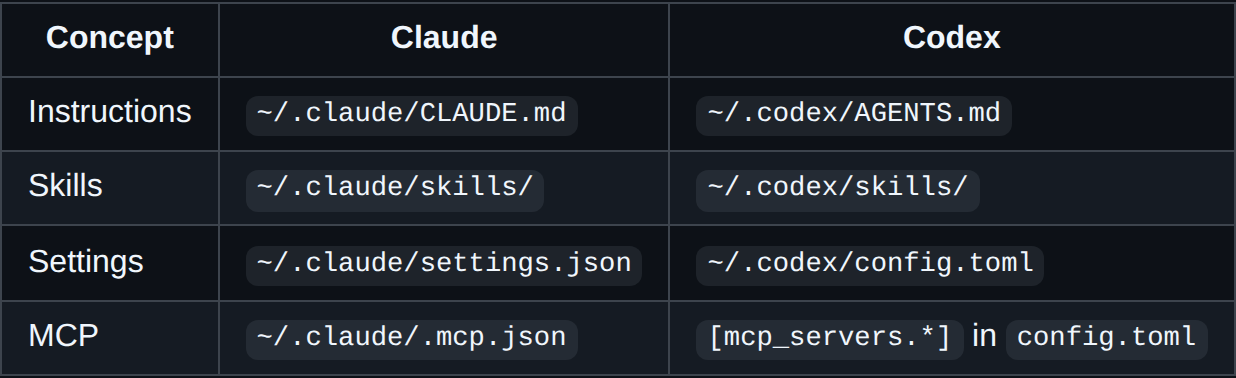
What its README says it does:
- It syncs instructions, skills, agents, MCP servers, permissions, hooks and commands. Plugins are status only.
- It maps meaning, not just files: Claude’s
Writepermission becomes Codex’ssandbox_mode = "workspace-write", and Claude-only tokens in your prose are translated for Codex and round-trip back. - MCP env values are copied verbatim by default. Set
AI_CONFIG_SYNC_STRIP_SECRETS=1to redact them. - Gemini CLI and Cursor are listed as planned.
❯ npm install -g ai-config-sync-manager❯ ai-config-sync status# shows drift between Claude Code and Codex, global and project scopes❯ ai-config-sync sync# preview only: dry-run is the default❯ ai-config-sync sync --apply# writes the plan, with a backup snapshot under .backups/There’s no server in this option: its scopes are ~/.claude/** and ~/.codex/** on the computer you run it on. So it pairs with option 1 or 2 rather than replacing them. The translation happens locally, and git or Syncthing still carries the files to your other machines.
Option 4: SkillPouch on your own server
SkillPouch is ours, so weigh this section with that in mind. It syncs items instead of folders: instructions, skills, agents, commands, MCP servers, hooks, plugins and settings, each written into every assistant you turn on, in that assistant’s format and folder. The hosted service runs at app.skillpouch.net, and the code is open source under AGPL-3.0, so you can run the same stack yourself.
The self-hosting overview lays out what that takes:
- One host with Docker Compose: Caddy for TLS and the web app, the API in two containers so a deploy can switch without downtime, a worker for background jobs, Postgres 16, and the encrypted files on a data volume or in an S3-compatible bucket.
- Ciphertext only. In the docs’ words: “The server only ever stores and relays ciphertext: pouch content is encrypted on each computer before it is uploaded.”
- Requirements: Debian or Ubuntu, 64-bit, 4 GB of RAM or more, an SSD for the data volume, a domain you control, and sign-in apps at GitHub and/or Google.
There are two install paths, and both use the same Compose stack:
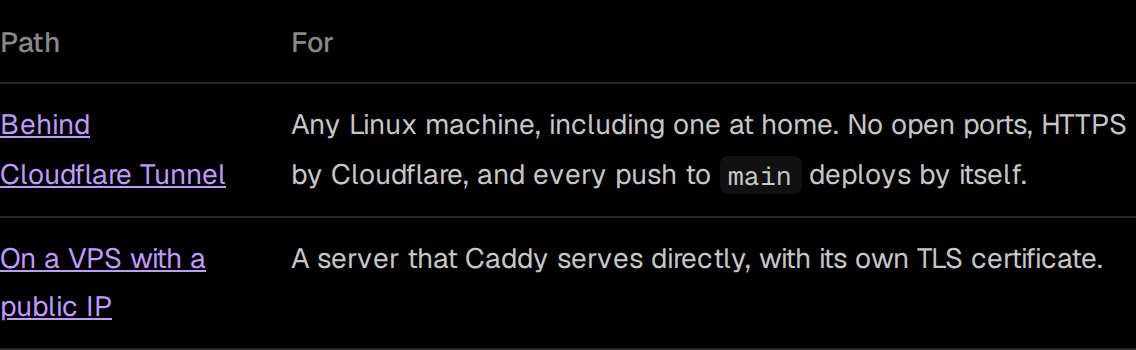
Then each computer points its CLI at your server. The address is the api_url line in ~/.skillpouch/config.toml, or SKILLPOUCH_API_URL for one shell, per the CLI configuration docs:
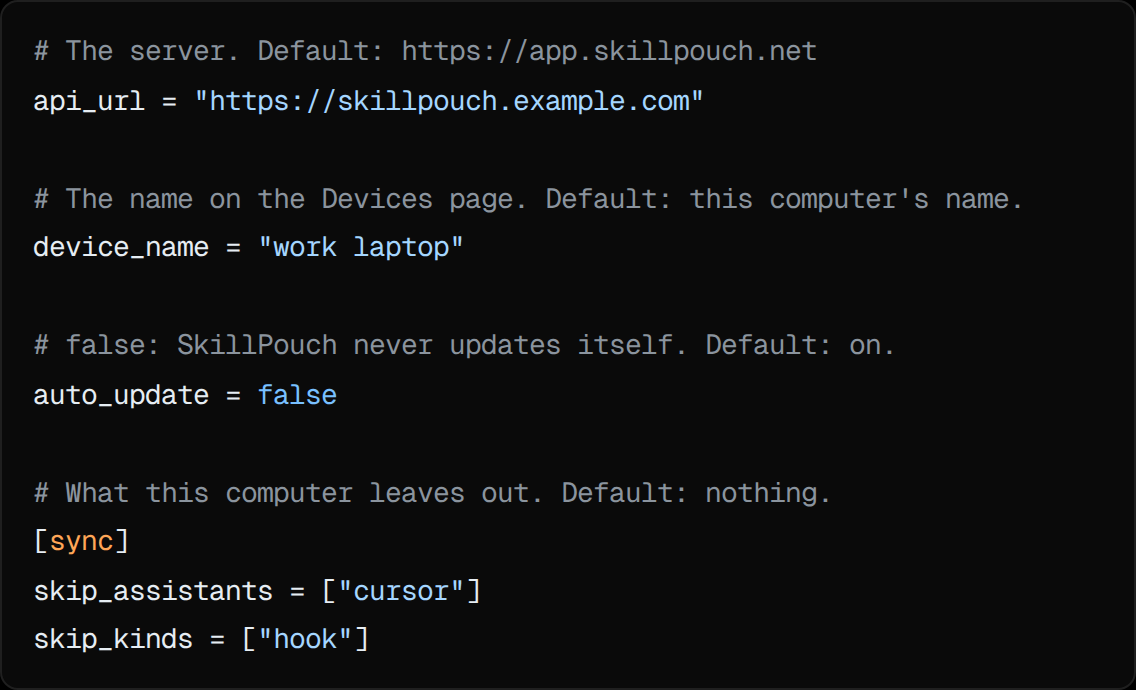
From there the background sync behaves as it does on the hosted service: changes from other computers arrive within moments, and when the server is away it retries and catches up. When the same item changes on two computers, the server keeps both versions as a conflict until you choose.
The costs compared with options 1 and 2: a 4 GB server, a domain, sign-in apps, and running a recent commit of main, since the overview says fixes are not backported. And sync copies mistakes too: delete a skill and it’s gone on every computer, so the docs suggest keeping your own backup, such as a git repo of your config. If you do, note that SkillPouch only reads an assistant folder that’s part of a git checkout and never writes there.
What each option actually syncs
| Git on your server | Syncthing | ai-config-sync-manager | SkillPouch self-hosted | |
|---|---|---|---|---|
| What you host | A bare repo over SSH | Optional discovery and relays | Nothing | Compose: Caddy, API, Postgres |
| Between computers | When you push and pull | While both are online | No, one computer | In the background |
| Between assistants | No | No | Claude Code and Codex | Each assistant’s own format |
| Instructions, skills, agents | Files you add | Files in the folder | Yes | Yes |
| MCP servers | Files you add | Files in the folder | Yes, JSON to TOML and back | Yes, only the entries it added |
| Settings | Files you add | Files in the folder | Permissions and hooks | Per assistant, from a fixed list |
| Secrets on the server | Plain text unless you encrypt | No server copy | No server | Ciphertext only |
| Conflicts | Merge by hand | .sync-conflict copy |
Shown by status |
Both kept, you pick |
The SkillPouch settings list per assistant is in the settings sync table.
How to choose a self-hosted config sync tool
A private git server with mcp.json in it: every key in an env block is readable by anyone who can read that repository.
Pouch content is encrypted on each computer before upload, so the server stores keys it can't read.
- One assistant, two or three machines, no keys in config: git on your own server. It keeps full history and needs nothing but SSH.
- No server at all, and machines that are often on together: Syncthing with a whitelist, plus your own discovery and relay servers if you want no public infrastructure involved.
- Claude Code and Codex on the same computer: ai-config-sync-manager for the translation, with git or Syncthing for the trip between computers.
- Several assistants on several computers, with MCP keys you don’t want in plain text on any server: SkillPouch, self-hosted if you’re happy to run a Compose stack with Postgres, or the hosted app.skillpouch.net if you aren’t.
Whichever you pick, check what’s in it before the first sync. If you see history.jsonl, projects/ or anything with auth or credentials in the name, leave it out.
Try it on your own setup
Free to start, end-to-end encrypted, open source. Two commands and your setup follows you.