You want to add an MCP server to Cursor, or find out why one isn’t showing up, and first you need the file. The Cursor mcp.json location has two answers: a global ~/.cursor/mcp.json in your home folder for servers you want in every project, and a project .cursor/mcp.json for servers that belong to one repo.

Both files use the same format, and both are plain JSON you can edit by hand. The rest of this post covers the exact path on each system, when to use which file, and the known issues that make a correct file look broken.
The exact mcp.json path on each system
The Cursor MCP docs put the global file at ~/.cursor/mcp.json, “in your home directory”. Here is what that means on each system:
| Where | Global mcp.json |
|---|---|
| macOS | ~/.cursor/mcp.json |
| Linux | ~/.cursor/mcp.json |
| Windows | %USERPROFILE%\.cursor\mcp.json |
| Remote SSH workspace | ~/.cursor/mcp.json on the remote machine |
| Any project | .cursor/mcp.json in the project root |
On Windows, your home directory is your user profile folder, %USERPROFILE%. A Cursor forum report about opening the global file from chat shows it as C:\Users\admin\.cursor\mcp.json (that bug has since been fixed). The folder name starts with a dot on every system.
The Remote SSH row surprises people. Per a Cursor staff answer on the forum, “in a remote workspace, user-level MCP servers are read from ~/.cursor/mcp.json on the remote machine”, and local user servers are not merged into the SSH workspace. Add the server to the remote machine’s file, or to .cursor/mcp.json in the project on the remote side.
To find or open the files from a terminal:
❯ ls ~/.cursor/mcp.json# macOS and Linux: the global file, if you have one❯ notepad $env:USERPROFILE\.cursor\mcp.json# Windows PowerShell: open the global file in Notepad❯ ls .cursor/mcp.json# in the project root: the project file, if the repo has one❯ agent mcp list# Cursor CLI: every server, with its source (project or global)The last command comes from the Cursor CLI MCP docs: agent mcp list shows each server’s name, connection status, configuration source and transport. It is the quickest way to see which file a server came from.
Global vs project mcp.json: which one applies
Cursor’s docs describe the two files by purpose: the project file is “for project-specific tools”, the global one “for tools available everywhere”. In practice:
- Global
~/.cursor/mcp.json: servers you want in every window, such as a docs search server or your own helper tools. It belongs to you and your computer, not to any repo. - Project
.cursor/mcp.json: servers that only make sense for one codebase, such as a server for that project’s database. It lives in the repo, so you can commit it and share it with everyone who works on the project. Paths inside it can use${workspaceFolder}, which Cursor resolves to “the folder that contains.cursor/mcp.json”.
You can have both. The CLI docs say the CLI “follows the same configuration precedence as the editor (project → global → nested), automatically discovering configurations from parent directories”, and that “MCP in the CLI uses the same configuration as the editor”. So a server you add for the editor also works with agent in the terminal.
A project file you commit is shared, so it should hold no secrets. Cursor resolves ${env:NAME} in command, args, env, url and headers, and its docs say to “use environment variables for secrets, never hardcode them”:
"API_KEY": "sk-..." typed into .cursor/mcp.json, then the file committed with the repo.
"API_KEY": "${env:API_KEY}" in mcp.json, the key itself set in your shell or system environment.
A minimal mcp.json example
Both files have the same shape: one mcpServers object, one entry per server. A local server gets command, args and env; a remote one gets url and, if needed, headers. This example follows the format in Cursor’s docs, with one of each:
{
	"mcpServers": {
		"local-server": {
			"command": "npx",
			"args": ["-y", "mcp-server"],
			"env": {
				"API_KEY": "${env:API_KEY}"
			}
		},
		"remote-server": {
			"url": "https://api.example.com/mcp",
			"headers": {
				"Authorization": "Bearer ${env:MY_SERVICE_TOKEN}"
			}
		}
	}
}
Other variables Cursor resolves in those fields: ${userHome} (your home folder), ${workspaceFolder}, ${workspaceFolderBasename}, and ${pathSeparator} or ${/}. On Windows, read the first known issue below before you use ${userHome}.
Known issues with Cursor’s mcp.json
These are open or recent reports on the Cursor forum, with the workarounds Cursor staff gave. Check the threads for the current status.
${userHome} on Windows. In this bug report, ${userHome} in mcp.json comes through as /c:/Users/... instead of C:\Users\..., so stdio servers that use it fail with spawn ENOENT. macOS and Linux are not affected. The staff reply suggests ${env:USERPROFILE} on Windows, ${env:HOME} on macOS and Linux, or ${env:HOME}${env:USERPROFILE}/... in one file for every system. A leading ~/ works in some setups but not all, so staff called the environment variable form “the robust one”.
The CLI agent ignores the project mcp.json. In this thread, the Cursor CLI on Linux showed no servers from ./.cursor/mcp.json. The cause was one entry with "type": "streamable-http". As a related report explains, the editor accepts it, but the CLI only accepts http and sse for remote servers, and when validation fails it “falls back to an empty config with no logs”, dropping every other server in the file too. The fix in both threads: change the line to "type": "http", or remove it.
Keeping mcp.json the same on every computer
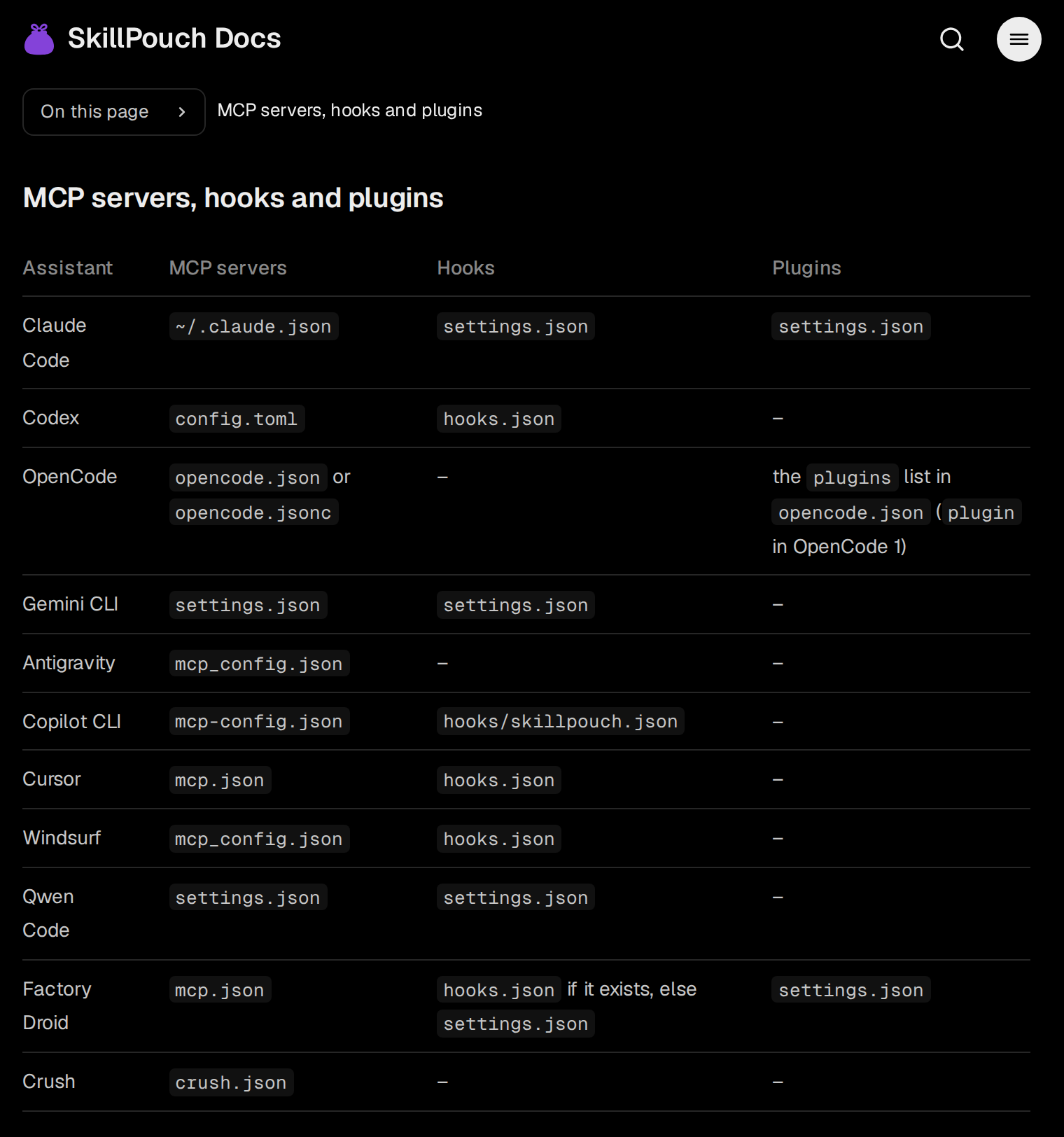
The global file is per computer, so a server you add on the laptop is missing on the desktop until you copy it over. SkillPouch, which we make, writes your MCP servers into ~/.cursor/mcp.json when it syncs them to Cursor. Per the SkillPouch docs, a server is stored once and written to every assistant in its own format, and SkillPouch “changes only the entries it added and leaves the rest of each file alone”.
Moving from Cursor to Claude Code instead? Cursor rules to CLAUDE.md, plus your MCP servers shows how to convert .mdc rules and move the servers out of mcp.json. For the other tools, instructions file locations lists where Claude Code, Codex, Copilot CLI, OpenCode and Gemini CLI keep their instructions files, and OpenCode config file location does the same job as this post for OpenCode.
Try it on your own setup
Free to start, end-to-end encrypted, open source. Two commands and your setup follows you.