You want to change an OpenCode setting, back up your setup or copy it to another computer, and first you need to know which file holds what. The OpenCode config file location is short to state but has three twists: the folder follows $XDG_CONFIG_HOME, OpenCode 2 moved the terminal settings into a new file, and your login isn’t in that folder at all.
The OpenCode config folder: ~/.config/opencode
OpenCode keeps your global setup in one folder, the same on Linux and macOS. On Windows it uses the same layout under your user profile, not %APPDATA%:
| System | Global config folder |
|---|---|
| Linux | ~/.config/opencode/ |
| macOS | ~/.config/opencode/ |
| Windows | %USERPROFILE%\.config\opencode\ |
With XDG_CONFIG_HOME set |
$XDG_CONFIG_HOME/opencode/ |
Sources: the OpenCode troubleshooting page for the per-system paths, and the OpenCode 2 settings docs for $XDG_CONFIG_HOME. On macOS, ~/Library/Application Support is where the desktop app keeps its own data; the CLI config is still in ~/.config/opencode.
The last row is the one that catches people. If your shell profile sets XDG_CONFIG_HOME, OpenCode follows it, and a script or a dotfiles link that hard-codes ~/.config/opencode ends up writing to a folder OpenCode never reads. If you’re not sure which folder your copy uses, the OpenCode CLI has two debug commands for it:
❯ opencode debug paths# shows the global paths OpenCode uses: data, config, cache, state❯ opencode debug config# prints the resolved configuration, after every file is merged❯ ls ~/.config/opencode# the files and folders this post walks throughWhat’s in the OpenCode config folder
Here is a full folder. You won’t have all of it; OpenCode only needs the files you actually use:
~/.config/opencode/
├── opencode.json     # or opencode.jsonc: providers, model, agents, permissions, MCP servers, plugins
├── tui.json          # OpenCode 1: theme, keybinds, scrolling and other terminal settings
├── cli.json          # OpenCode 2: the terminal settings, in one global file
├── AGENTS.md         # your personal instructions, read in every session
├── agents/           # agents as Markdown files
├── commands/         # custom commands as Markdown files
├── skills/<name>/SKILL.md
└── plugins/          # local plugin files
Instructions go in AGENTS.md. OpenCode reads ~/.config/opencode/AGENTS.md in every session, plus the AGENTS.md files in your project. OpenCode 1 falls back to ~/.claude/CLAUDE.md when there’s no global AGENTS.md; the OpenCode 2 migration guide says V2 currently only discovers AGENTS.md. For every other assistant’s instructions file, see instructions file locations.
Skills, agents and commands are folders of Markdown files. Skills are also picked up from ~/.claude/skills/ and ~/.agents/skills/, per the skills docs.
A project has its own layer on top: opencode.json in the project root (or .opencode/opencode.json), and a .opencode/ folder with project agents, commands, skills and plugins. The files are merged, not replaced: if your global file sets a model and the project file sets permissions, you get both, and only a key set in both places takes the project’s value. Admin-managed files in /etc/opencode/, /Library/Application Support/opencode/ or %ProgramData%\opencode override everything. To point OpenCode somewhere else, set OPENCODE_CONFIG (a config file) or OPENCODE_CONFIG_DIR (a config folder), as the config docs describe.
OpenCode settings file: opencode.json, then tui.json or cli.json
opencode.json (or opencode.jsonc, with comments) holds what OpenCode does: providers and models, the default agent, agents, permissions, MCP servers, plugins and experimental options. Both versions use the same file in the same place, but OpenCode 2 renamed several keys:
| Setting | OpenCode 1 | OpenCode 2 |
|---|---|---|
| Providers | provider |
providers |
| Agents | agent and mode |
agents |
| Permissions | permission |
permissions, an ordered list |
| Commands | command |
commands |
| MCP servers | mcp |
mcp.servers |
| Plugins | plugin |
plugins |
| Terminal settings | tui.json |
cli.json |
OpenCode 2 reads the OpenCode 1 names without rewriting your file, so the native V2 shape is optional. The terminal settings are the real move. OpenCode 1 reads tui.json next to opencode.json, and a project can have its own. OpenCode 2 has one global cli.json for theme, keybinds, scrolling, diffs, tabs and the rest, and no project-local version:
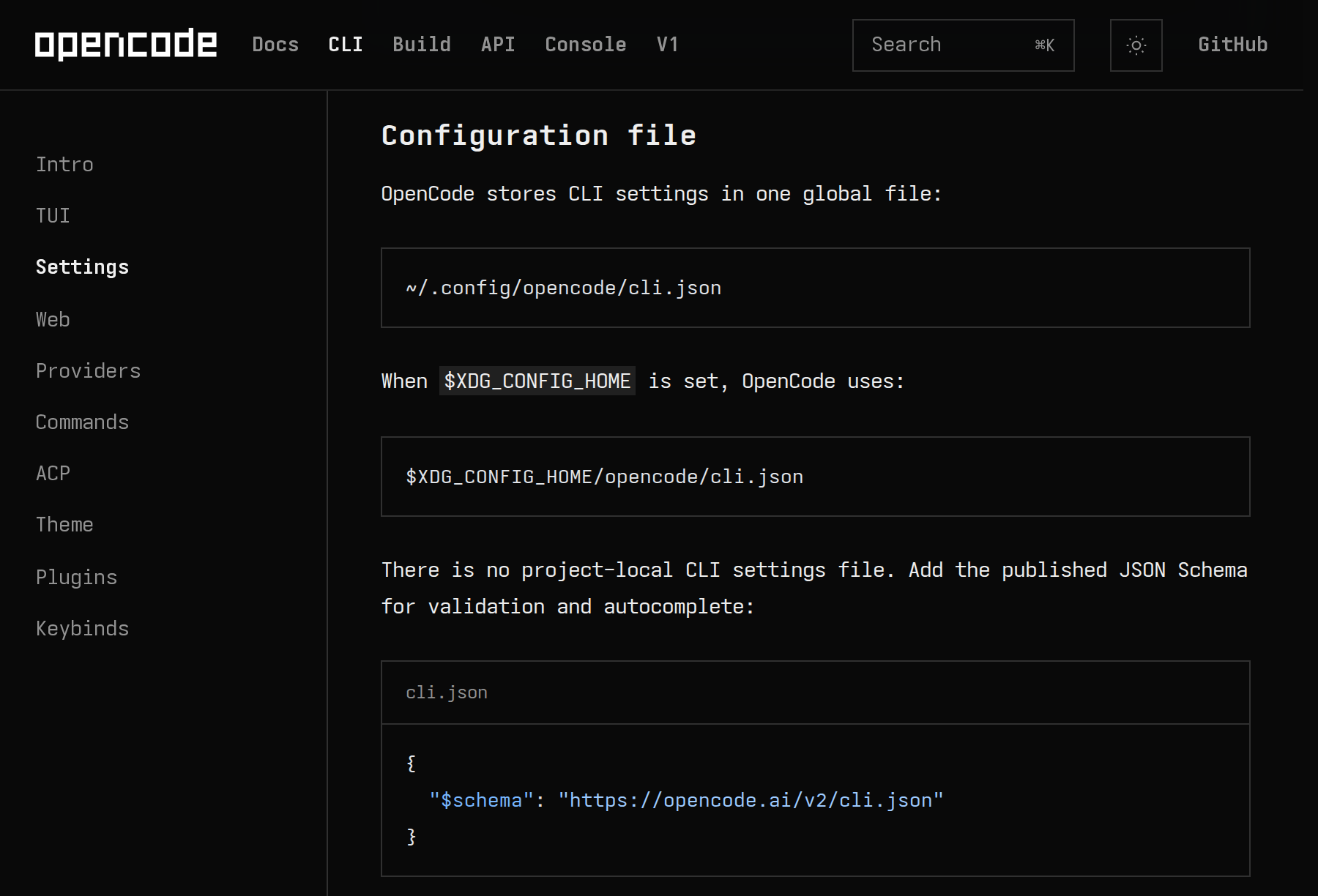
You don’t have to write cli.json by hand. When it’s missing, the first OpenCode 2 start migrates the supported settings from your global tui.json into it and leaves the OpenCode 1 files as they were. Project-level tui.json files are not migrated, and V2 has no project-level terminal settings.
What isn’t in the config folder: auth.json and data
Your provider logins are not in ~/.config/opencode. OpenCode keeps them in its data folder, with the database, snapshots and logs:
| File | macOS and Linux | Windows |
|---|---|---|
| Stored logins | ~/.local/share/opencode/auth.json |
%USERPROFILE%\.local\share\opencode\auth.json |
| Sessions database | ~/.local/share/opencode/opencode.db |
%USERPROFILE%\.local\share\opencode\opencode.db |
| Logs | ~/.local/share/opencode/log/ |
%USERPROFILE%\.local\share\opencode\log |
That split is handy: you can put the whole config folder in git without carrying auth.json along. Never commit or share auth.json itself. The one way a secret can still end up in the config folder is a key typed straight into opencode.json. OpenCode can read it from elsewhere with {env:...} or {file:...}:
"apiKey": "sk-..." pasted into opencode.json, then the folder pushed to a dotfiles repo.
"apiKey": "{env:ANTHROPIC_API_KEY}" in opencode.json, the key itself in your shell or a secrets file outside the repo.
Keeping the same OpenCode setup on every computer
With one computer, knowing the paths is enough. With two, the folder starts to drift: a skill added on the laptop, an MCP server on the desktop, a keybind only one of them has.
The do-it-yourself route is a git repo for ~/.config/opencode, linked into place with Stow or chezmoi. Dotfiles for AI coding assistants walks through that setup and what to leave out. It works, as long as you remember to commit and pull, and keep keys out of opencode.json.
The other route is SkillPouch, which we make. It finds OpenCode where OpenCode itself looks, $XDG_CONFIG_HOME/opencode included:
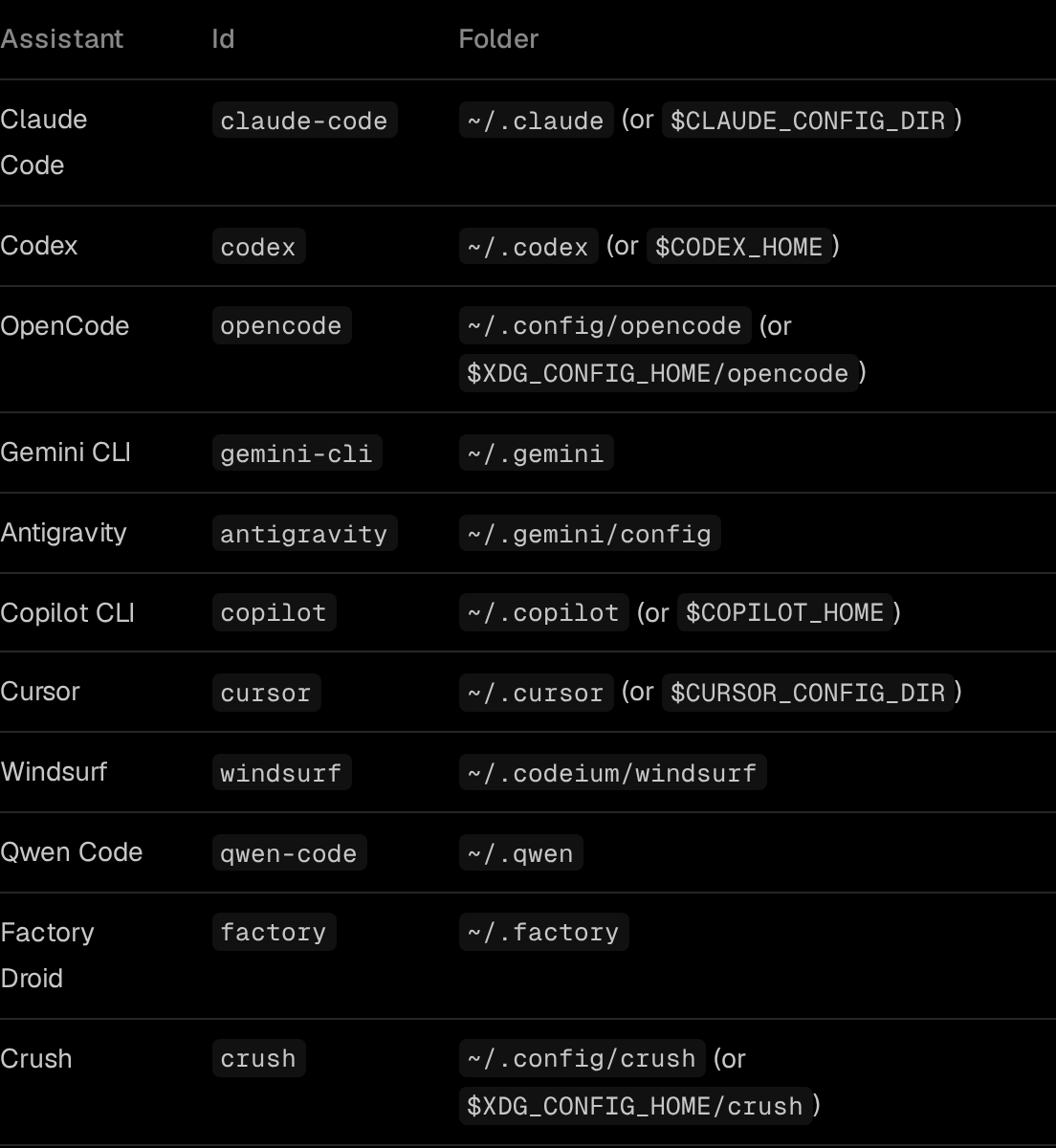
Per the SkillPouch docs, it syncs OpenCode’s AGENTS.md, skills/, agents/ and commands/, the MCP servers in opencode.json or opencode.jsonc, the plugin list, and the settings in opencode.json and cli.json (tui.json on OpenCode 1). Computers on OpenCode 1 and 2 share providers, models, agents, permissions and terminal preferences; keybinds and options only one version has stay on the computers of that version. Credential files such as auth.json are never synced. Everything is encrypted on your computer before upload (security).
- 1
Install and log in
npm i -g skillpouch, then skillpouch. Type the code it shows on the approval page in a browser where you are signed in and unlocked, then choose Authorize.
- 2
Keep OpenCode switched on
Pick a pouch and the assistants this computer syncs. skillpouch select lists the current choice.
- 3
Check the settings it carries
skillpouch settings list opencode shows each synced entry, such as opencode.json:providers.vultr. skillpouch settings exclude opencode <entry> stops syncing one entry on this computer; the pouch keeps it.
One honest limit: sync is not a backup. As the background sync docs put it, a deletion or a broken edit reaches your other computers too, so keep your own backup, such as a git repo, if you need to roll back.
Whichever route you take, run opencode debug config on the second computer once it’s set up. It prints the configuration OpenCode actually resolved, so you can see whether your providers, agents and MCP servers made it across.
Try it on your own setup
Free to start, end-to-end encrypted, open source. Two commands and your setup follows you.